

Your Google Analytics 4 setup is hiding an entire traffic channel from you. Right now.
TL;DR: Standard GA4 configurations dump AI-driven referral traffic into “Direct” or generic “Referral” buckets. If you want to understand how ChatGPT, Perplexity, Claude, and other LLMs are sending humans to your site, you need to create a Custom Channel Group with a specific regex pattern. This takes about ten minutes and changes everything about how you see your acquisition data.
I’ve been watching this problem unfold from Boise for months. Clients come to me with traffic reports that show declining organic clicks and mysterious “direct” traffic spikes. They assume users are typing their URLs directly. They’re wrong.
That traffic is coming from AI interfaces. And GA4 is burying it.
Referrals vs. Crawling
Before we touch the GA4 admin panel, you need to understand what we’re actually tracking here. This is where most tutorials fail you.
AI Referrals are human users clicking links that an LLM provided in its response. Someone asks ChatGPT for recommendations, ChatGPT cites your site, the user clicks through. That click fires your GA4 tag. This is trackable in GA4.
AI Crawling is something entirely different. Bots like GPTBot, Google-Extended, ClaudeBot, and PerplexityBot scrape your content to train models or retrieve information for responses. These bots don’t execute JavaScript. They never fire your analytics tag. GA4 will never see this traffic.
To track crawlers, you need server logs or Google Search Console. That’s a different conversation entirely.
Today, we’re focused on the referrals, the actual humans clicking through from AI interfaces. This is the traffic that represents real engagement, real potential conversions, and a completely new acquisition channel that your current reports are hiding.
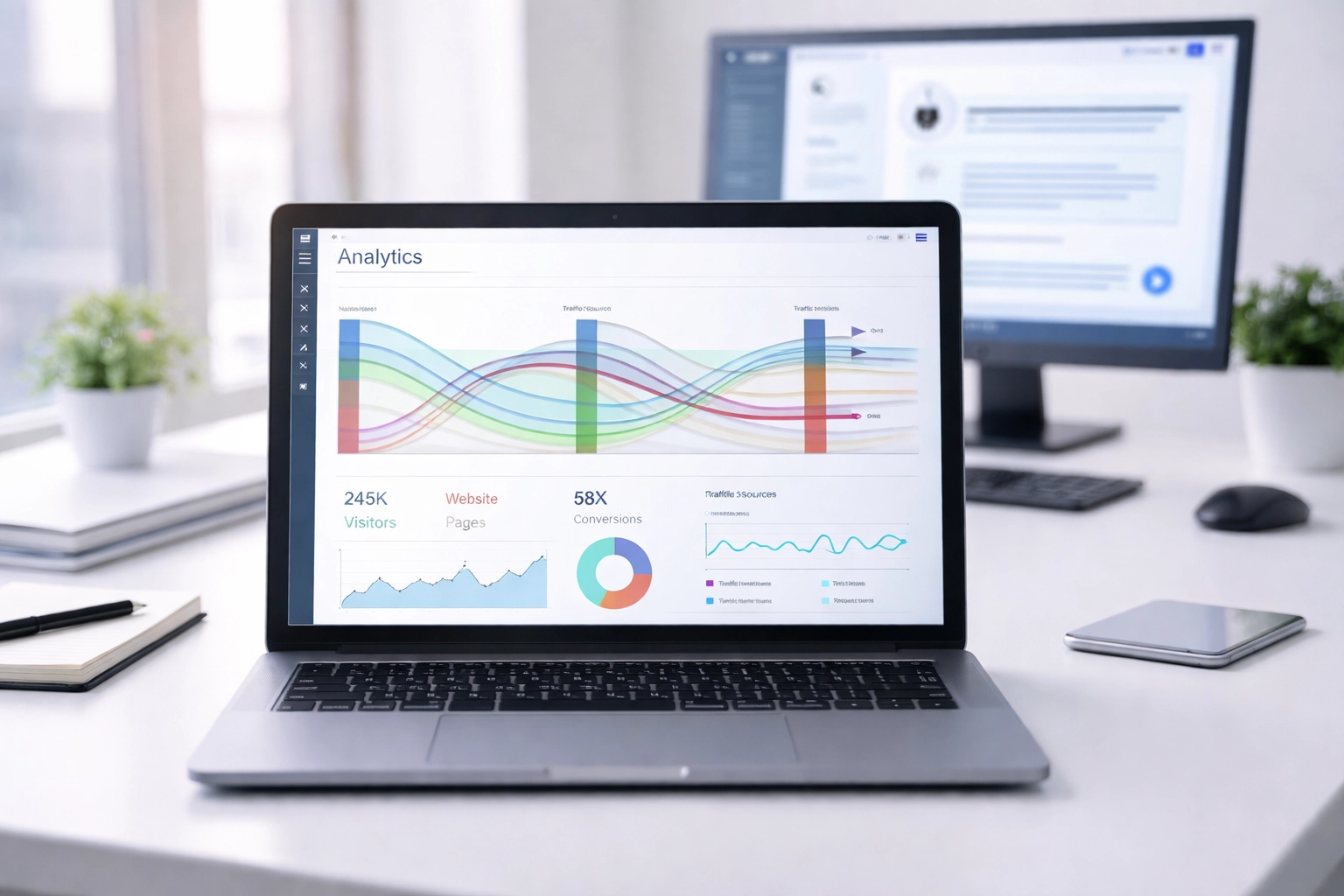
GA4’s Default Channel Groups Are Blind
Here’s what happens when someone clicks a link from ChatGPT’s response to your site.
GA4 sees the referral source. It might register as chat.openai.com or chatgpt.com or something similar. But GA4’s default channel grouping logic doesn’t know what to do with it. The system checks its rules, finds no match for “AI traffic,” and dumps it into one of two buckets:
- Referral (if it’s lucky enough to pass a referrer header)
- Direct (if the referrer gets stripped, which happens more than you’d think)
Either way, your AI-driven traffic gets mixed in with everything else. You can’t isolate it. You can’t trend it. You can’t report on it to stakeholders who are asking, “How is AI affecting our traffic?”
Over 60% of GA4 implementations have data quality issues stemming from rushed migrations and configuration gaps (SQ Magazine). Add the AI traffic blindspot to that list.
Building a Custom Channel Group for AI Traffic
This is the tutorial portion. Follow these steps exactly.
Step 1: Access Channel Groups in GA4 Admin
Navigate to your GA4 property. Click Admin in the lower left. Under your property column, find Data display and click Channel groups.
You’ll see your default channel grouping. Don’t edit this one. We’re creating a new custom group.
Step 2: Create a New Custom Channel Group
Click Create new channel group in the upper right.
Name it something clear: AI & LLM Traffic Segmentation or similar. This will become a dimension you can use in reports.
Step 3: Add Your AI Traffic Channel
Click Add new channel. Name it AI & LLM Traffic.
Now for the critical part. You need to define the conditions that identify AI referral sources.
Set the dimension to Source. Set the match type to matches regex.
Here’s your regex string:
.*(ai|openai|chatgpt|gemini|gpt|perplexity|anthropic|claude|bing|copilot|grok).*
This pattern catches traffic from sources containing any of those terms. It’s intentionally broad because AI platforms use varied domains and subdomains. The .* wildcards on either side ensure partial matches work.
Copy that regex exactly. A single typo breaks the entire rule.
The Priority Move That Everyone Forgets
This is where most implementations fail.
GA4 processes channel group rules in order from top to bottom. It assigns traffic to the first matching rule and stops. If your AI channel sits at the bottom of the list, GA4 will classify that ChatGPT referral as generic “Referral” traffic before it ever reaches your custom rule.
Drag your new AI & LLM Traffic channel to the top of the priority list.
This ensures GA4 checks for AI sources first, before falling through to broader categories. Skip this step and your custom channel captures nothing.
Step 5: Save and Wait
Save your custom channel group. Here’s the catch: the rule is retroactive for processing, but the UI takes time to update.
You won’t immediately see “AI & LLM Traffic” as an option in your report dropdowns. Give it one to two hours. GA4 needs to propagate the new dimension across its interface.
Don’t panic when it’s not there instantly. Don’t delete and recreate the group. Wait.
When Your Reports Don’t Show the Data
You built the channel group. You waited. You still can’t see your AI traffic. Here’s what’s probably wrong.
Your Acquisition Reports Are Missing
GA4’s Library feature lets you customize which reports appear in your navigation. If someone (or the default configuration) hid the Acquisition reports, you won’t find them.
Go to Reports > Library (bottom left). Find the Acquisition collection. Click the three dots and select Publish. Your acquisition reports reappear.
You’re Using the Wrong Dimension
This trips up even experienced analysts.
When you open your Traffic Acquisition report, the default primary dimension is Session default channel group. That’s the built-in grouping, not your custom one.
Click the primary dimension dropdown. Change it to Session custom channel group. Now select your custom channel group from the options.
Your AI traffic appears. Finally.

The Processing Gap Reality
GA4 doesn’t process data in real-time the way Universal Analytics pretended to. There’s a lag. If you created your channel group today and you’re looking at today’s data, you might see nothing.
And yes—this is the same organizational disease BlastX calls out as the “gap between AI and action” (BlastX).
Give it 24-48 hours for reliable data to populate. The rule will process historical data eventually, but the freshest data takes longest to appear correctly.
AI Referrals as a New KPI
I’m going to be direct with you.
Traditional organic clicks are compressing. AI Overviews, answer engines, and zero-click searches are reshaping how users interact with information (Communications of the ACM: “Answer Engines Redefine Search”). The old model: rank, get clicked, convert: is fragmenting.
But AI referrals represent something new. When ChatGPT or Perplexity cites your site and a user clicks through, that’s a qualified visitor. They asked a question. The AI determined your content was authoritative enough to cite. The user chose to go deeper.
That’s a higher-intent visitor than someone clicking a random blue link on page one.
If you can’t measure this traffic, you can’t optimize for it. You can’t report on it. You can’t prove to leadership that your content strategy is generating visibility in AI contexts.
This isn’t a vanity metric. This is the early signal of a channel that will only grow as AI interfaces become the default way people find information.
The sites that track this now will understand the pattern. The sites that don’t will spend 2027 wondering where their traffic went.
The Forensic Summary
Your GA4 setup has a blindspot. AI-driven referral traffic is being buried in generic buckets, invisible to your reports and your strategic planning.
The fix takes ten minutes:
- Create a Custom Channel Group in GA4 Admin
- Add a channel using the regex
.*(ai|openai|chatgpt|gemini|gpt|perplexity|anthropic|claude|bing|copilot|grok).*on the Source dimension - Move that rule to the top of your priority list
- Change your report dimension to
Session custom channel group - Wait for processing and validate
If your GA4 implementation is one of the 60% with configuration issues, this is just the beginning of what you’re missing. I audit analytics setups that have been bleeding data for years without anyone noticing.
Want a forensic review of your GA4 configuration? I’ll tell you exactly what’s broken and what it’s costing you.